
Report Writer
Please refer to Web Report Designer - End User Documentation for more details particular to report design. Note that not all features described in this documentation will be available as they may not be suitable in this context.
Walkthrough - Create a Simple Report
The steps below will demonstrate how to create simple report from scratch. Some knowledge of the tables available in an Evolution database is required. We will create an Inventory Item listing report showing all rows contained in the StkItem table.
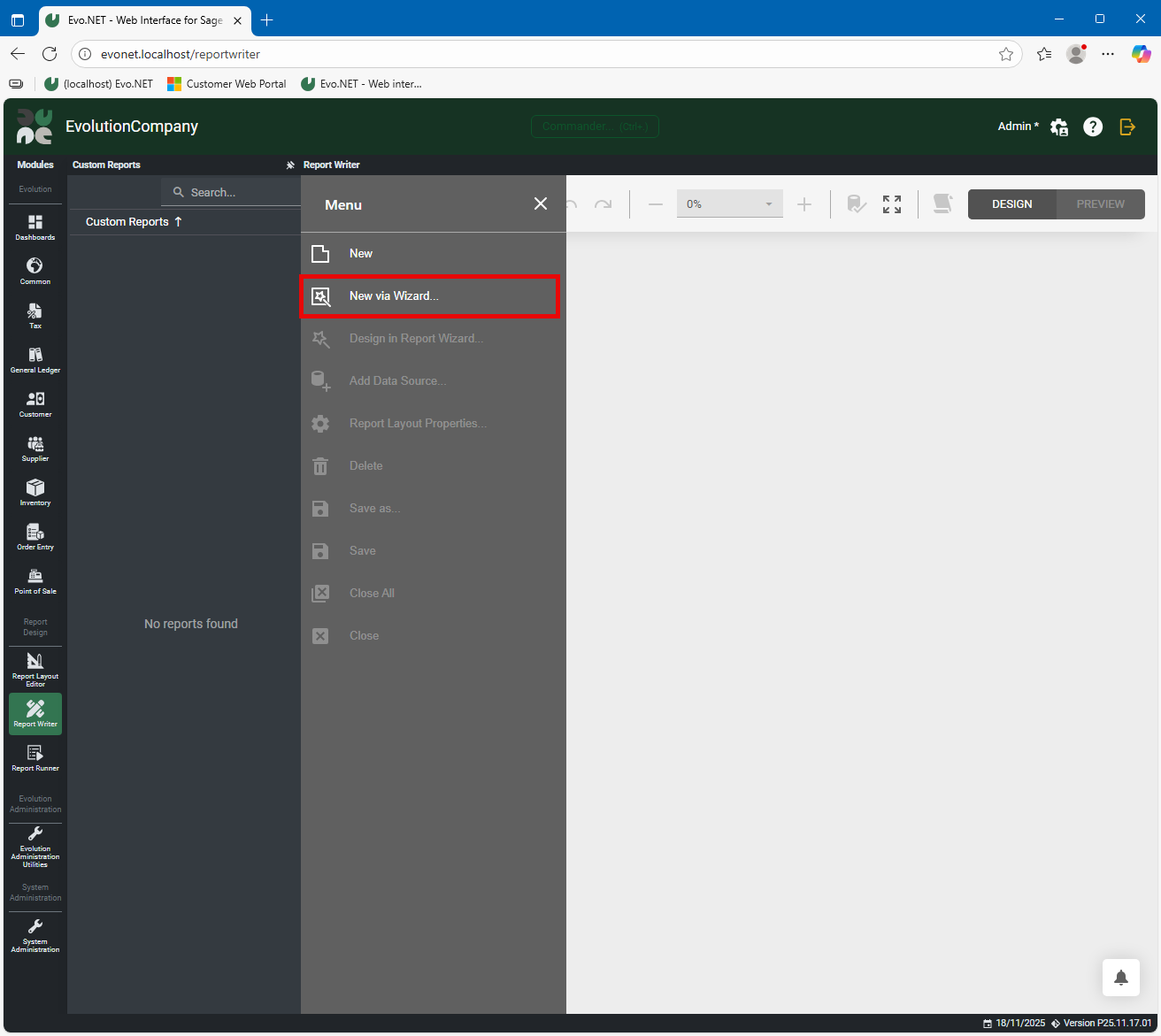
Open the hamburger menu drawer and select New via Wizard...
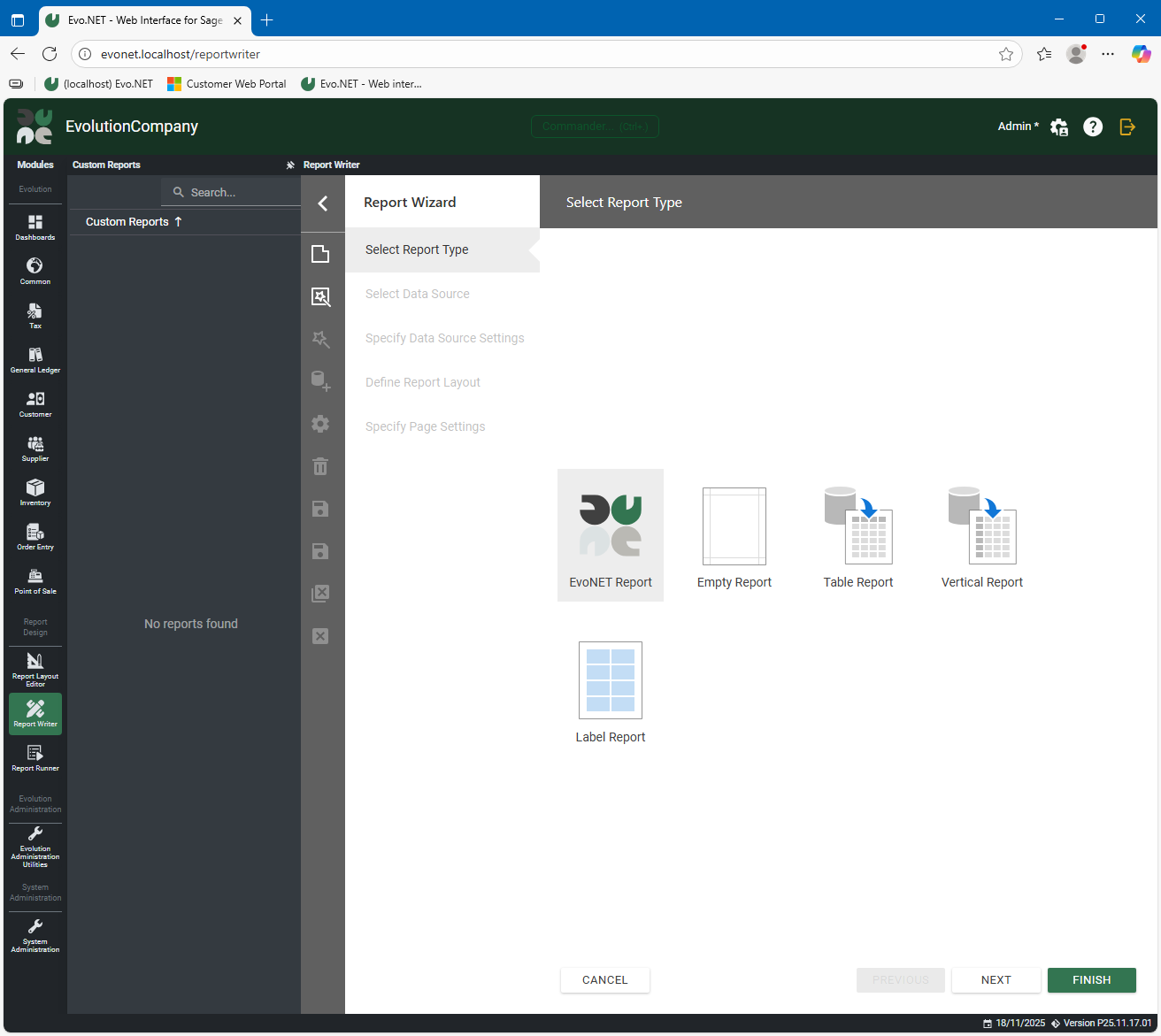
Report Type: Select EvoNET Report. This will provide some pre-configured settings suitable for the context. Click Next.
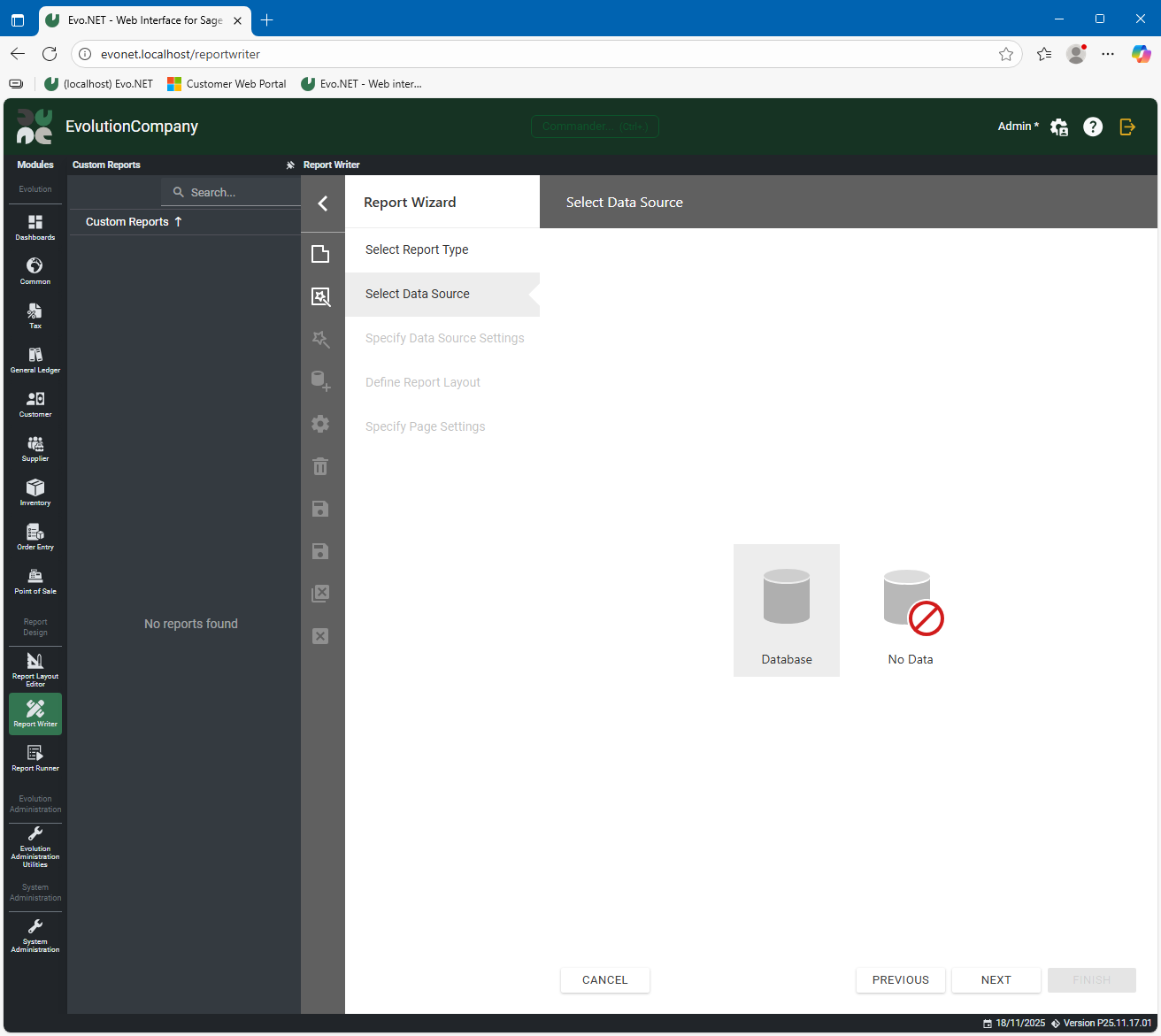
Data Source: Select Database. Click Next.
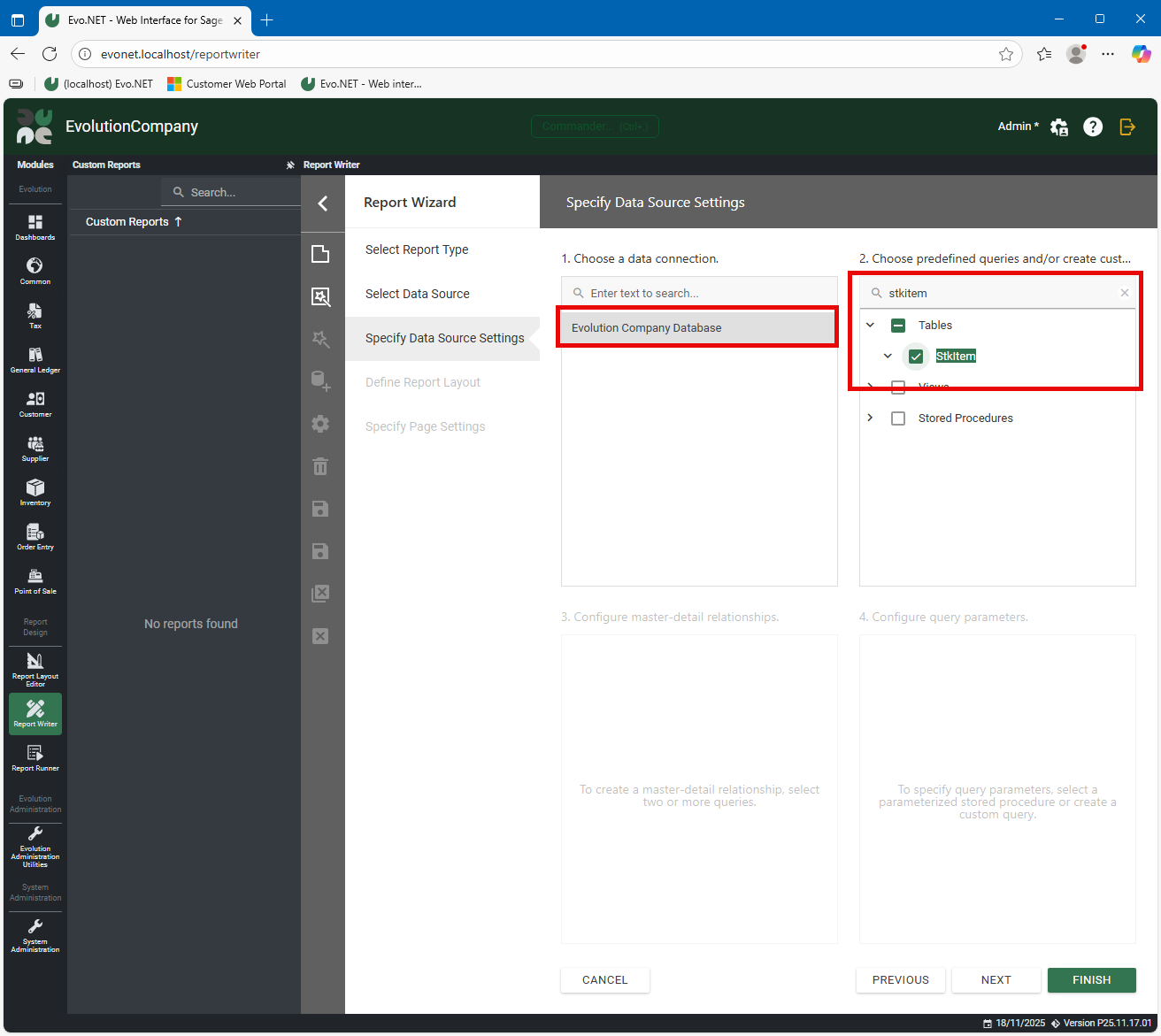
Specify Data Source Settings: Select Evolution Company Database as the data connection and then type StkItem into the search field.
Please be patient while application builds the schema on the back-end for the database and searches it as an Evolution database is large with many objects.
Select the StkItem table.
You may click Finish at any point from now on to accept the further defaults. We will continue through the wizard by clicking Next.
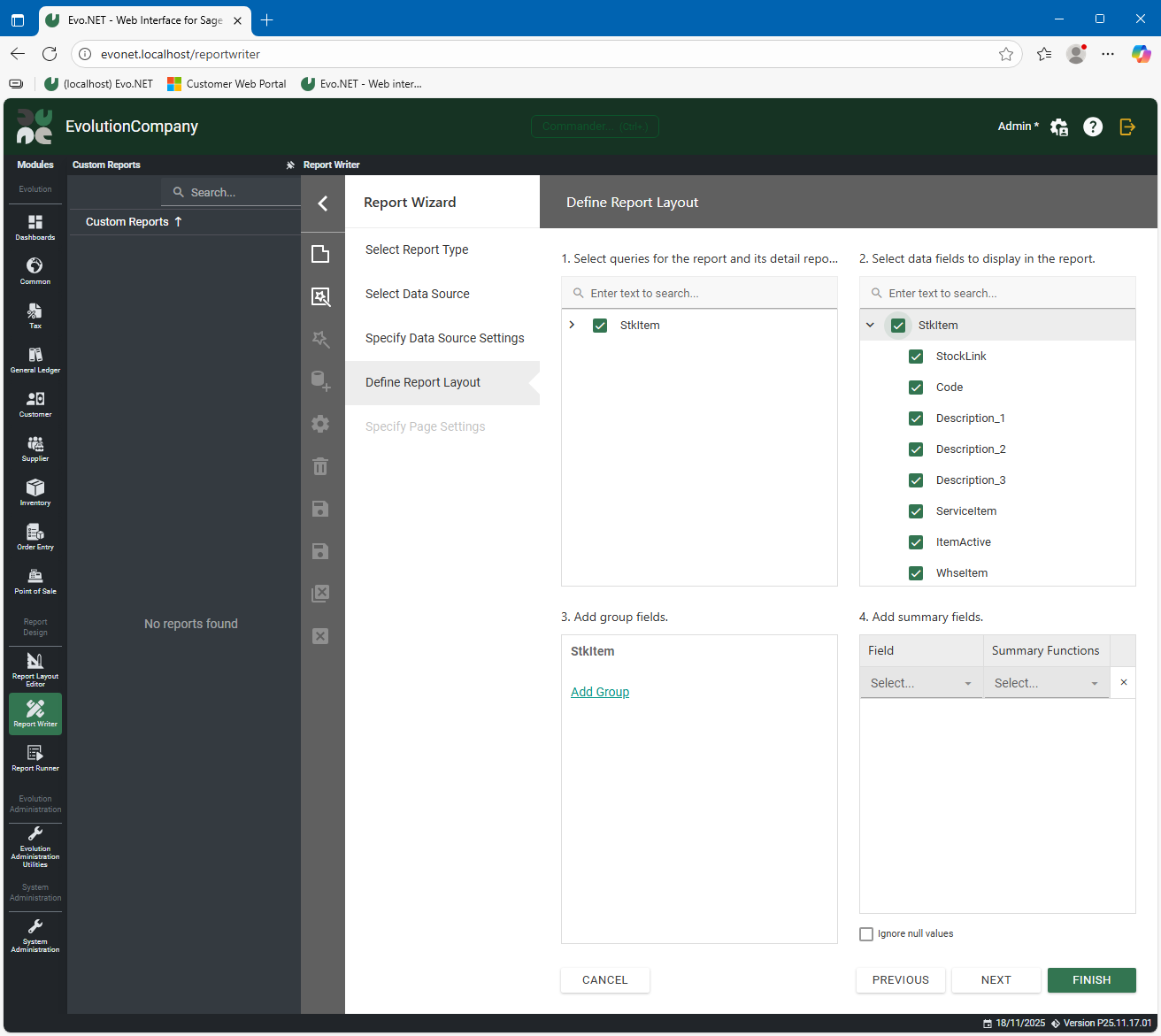
Define Report Layout: Select the fields you wish to make available for this report. We will leave them all selected.
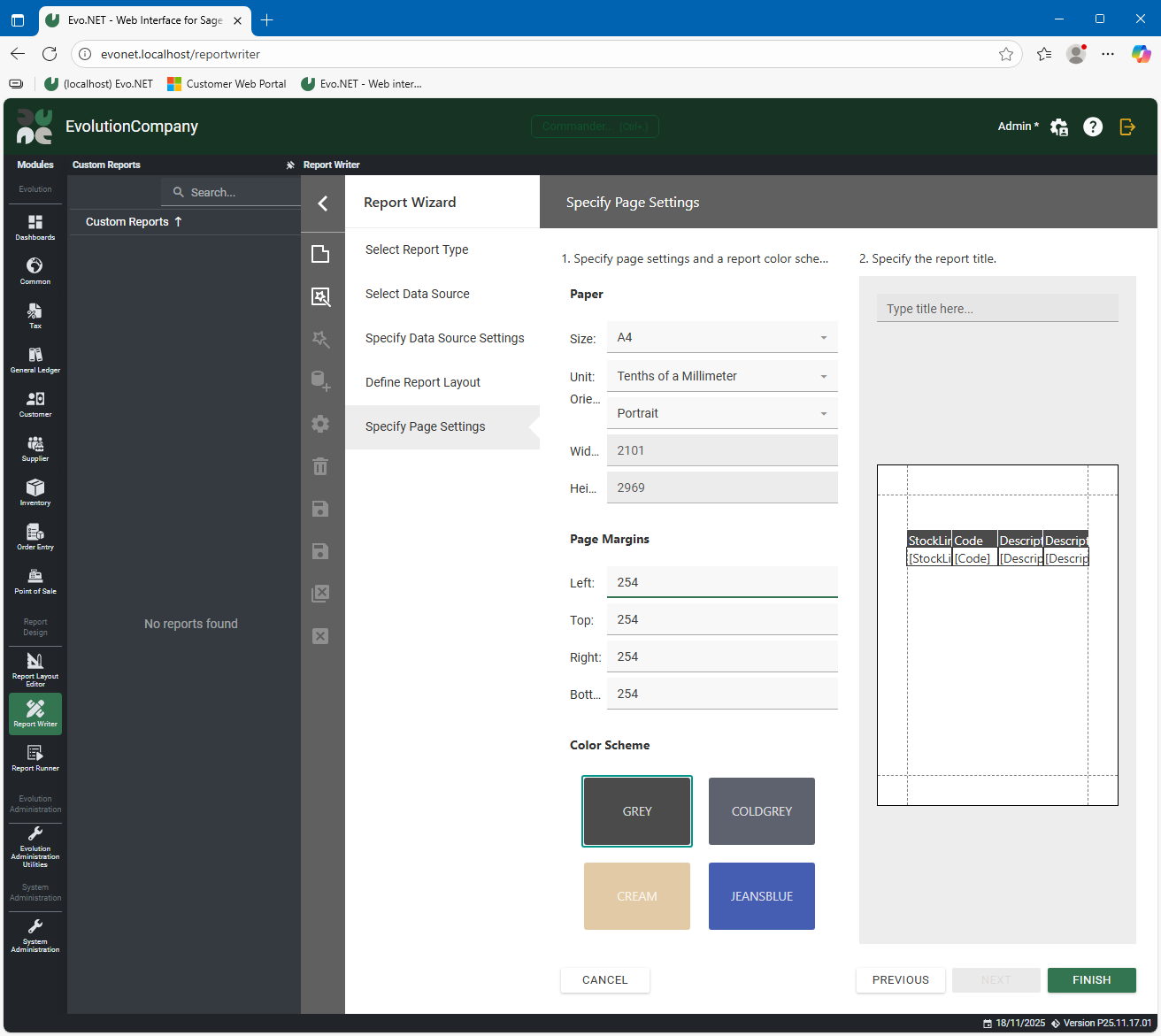
Specify Page Settings: Configure paper size and units.
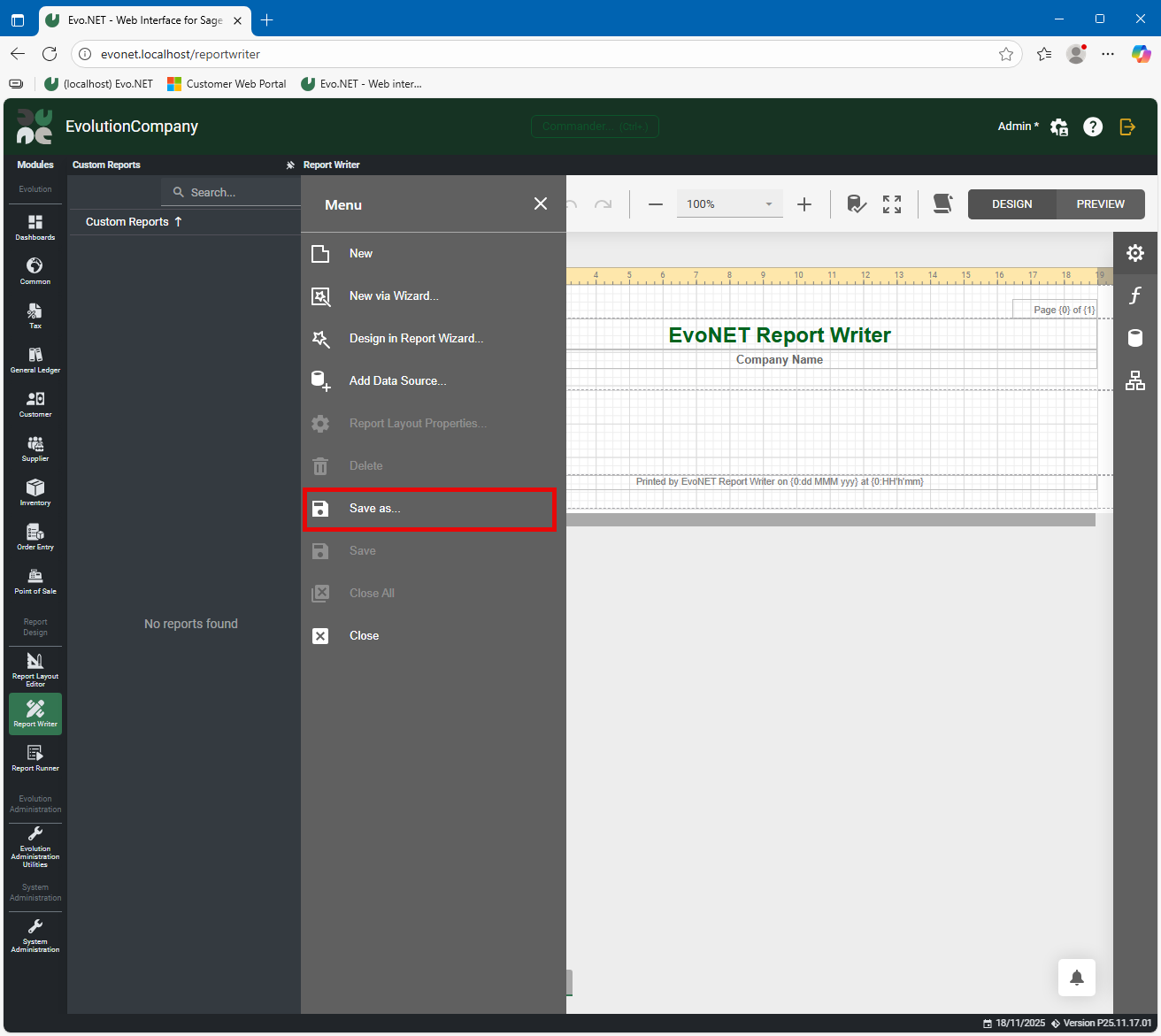
Click Finish, then open the hamburger menu and click Save as....
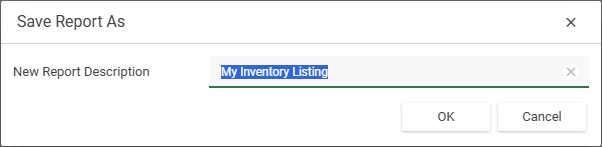
Enter a name for the New Report and click OK.
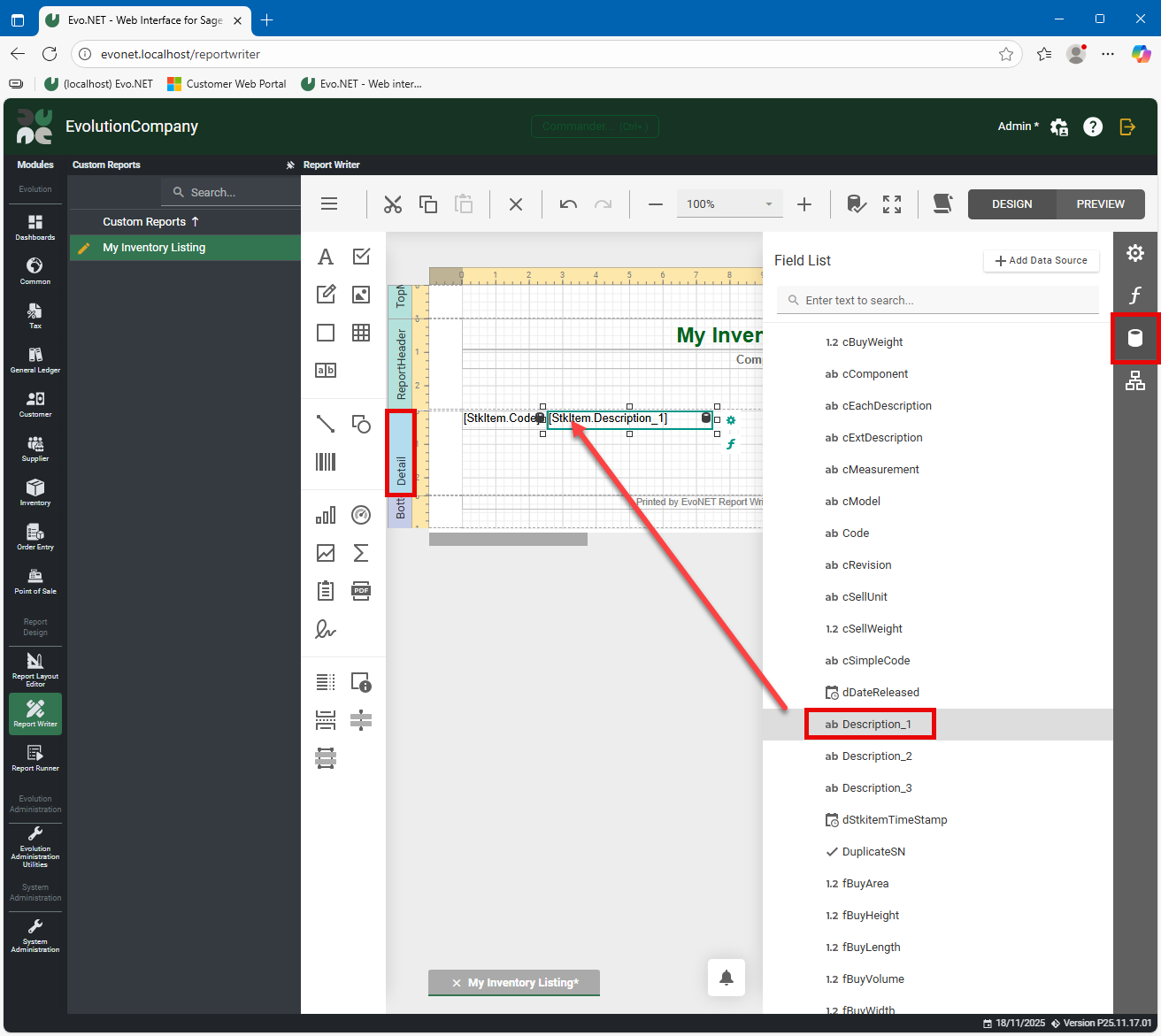
Open the Field List tool drawer, expand the StkItem data source, locate Code and Description_1 and drag them onto the design surface into the Detail Section.
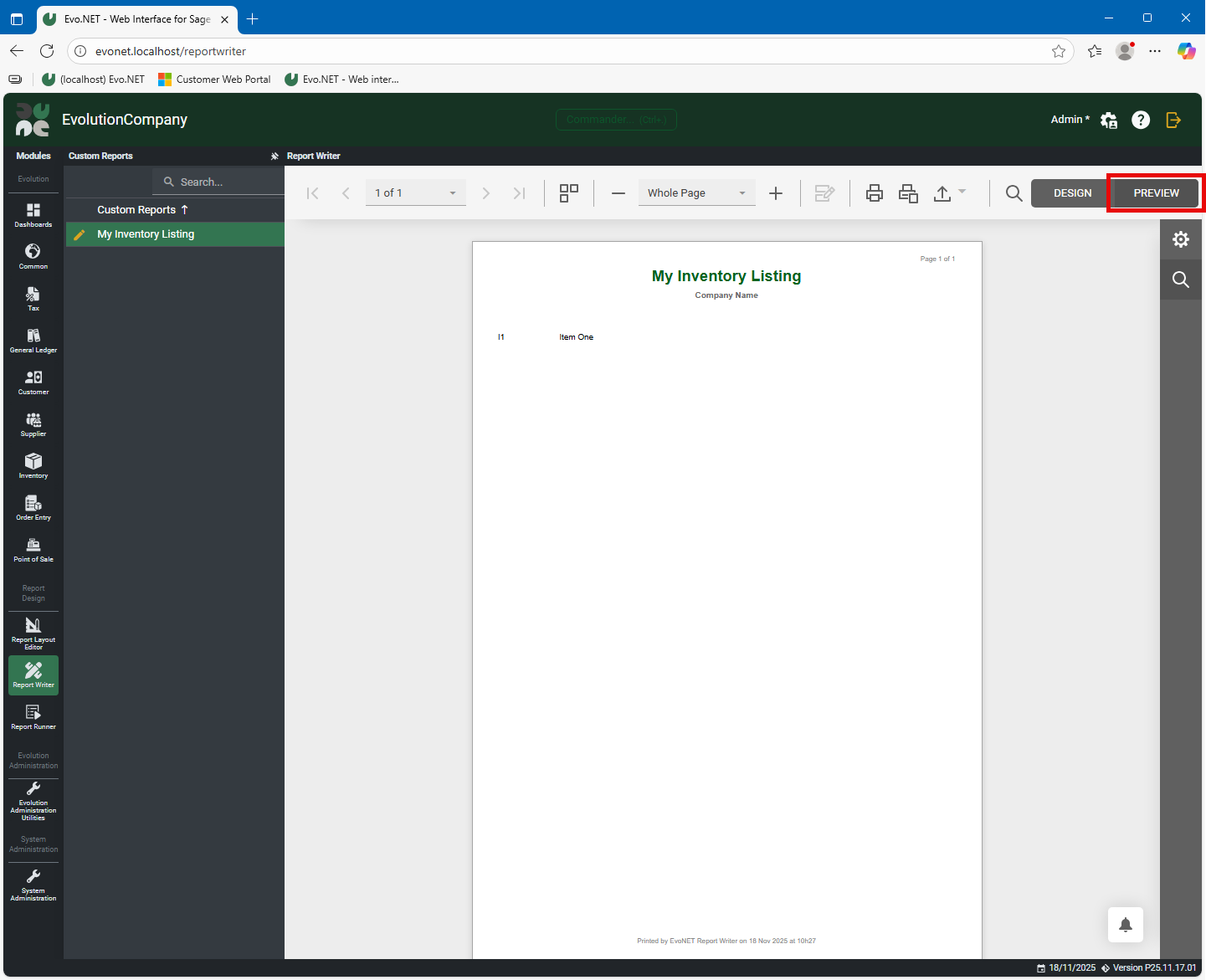
Select Save from the hamburger menu and then click the Preview button to generate the report. The Inventory Items in your Company should be listed.
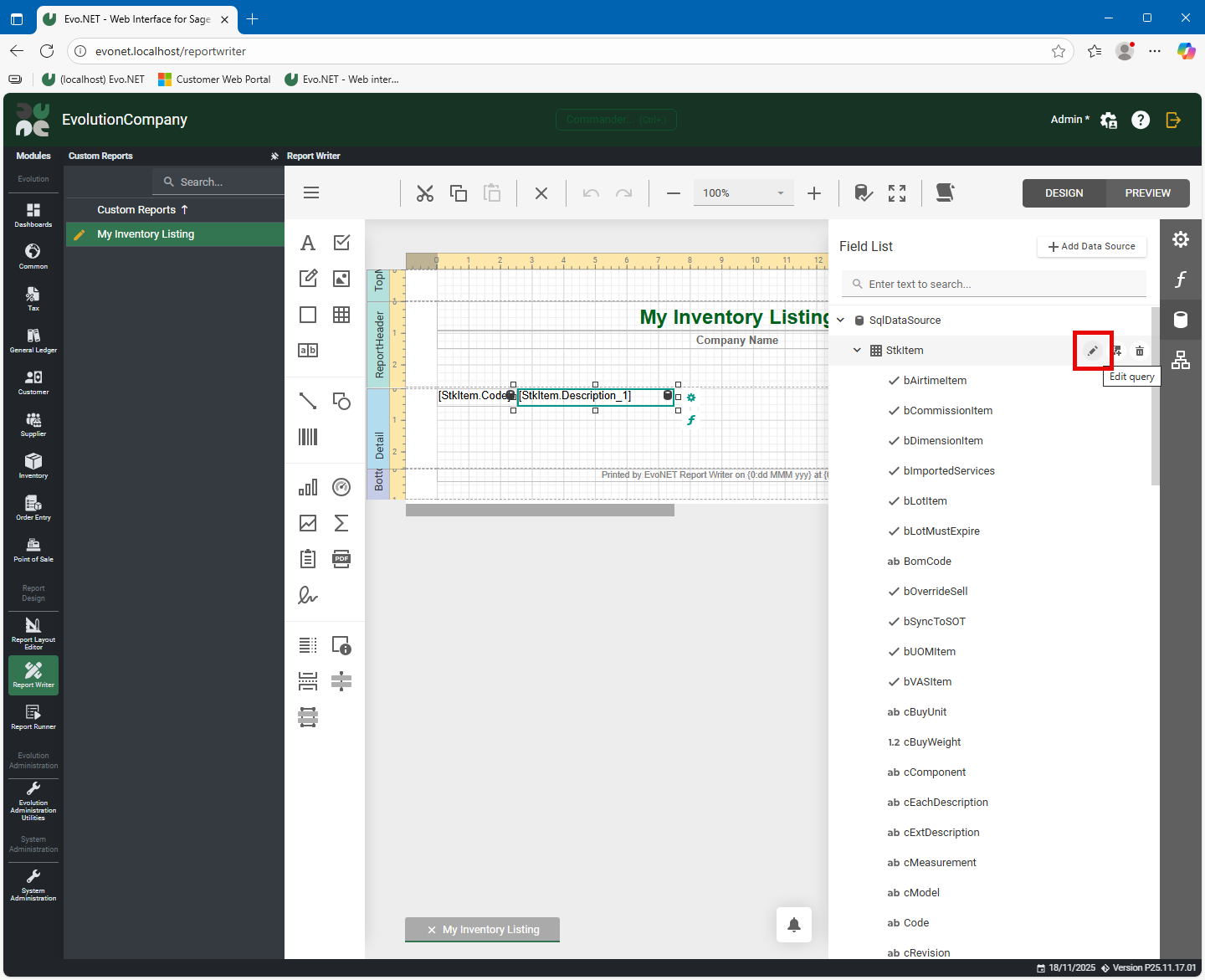
To directly modify the SQL used to produce the data, click the Edit Query button next to the datasource (note this button will only appear when the mouse is hovering over the datasource).
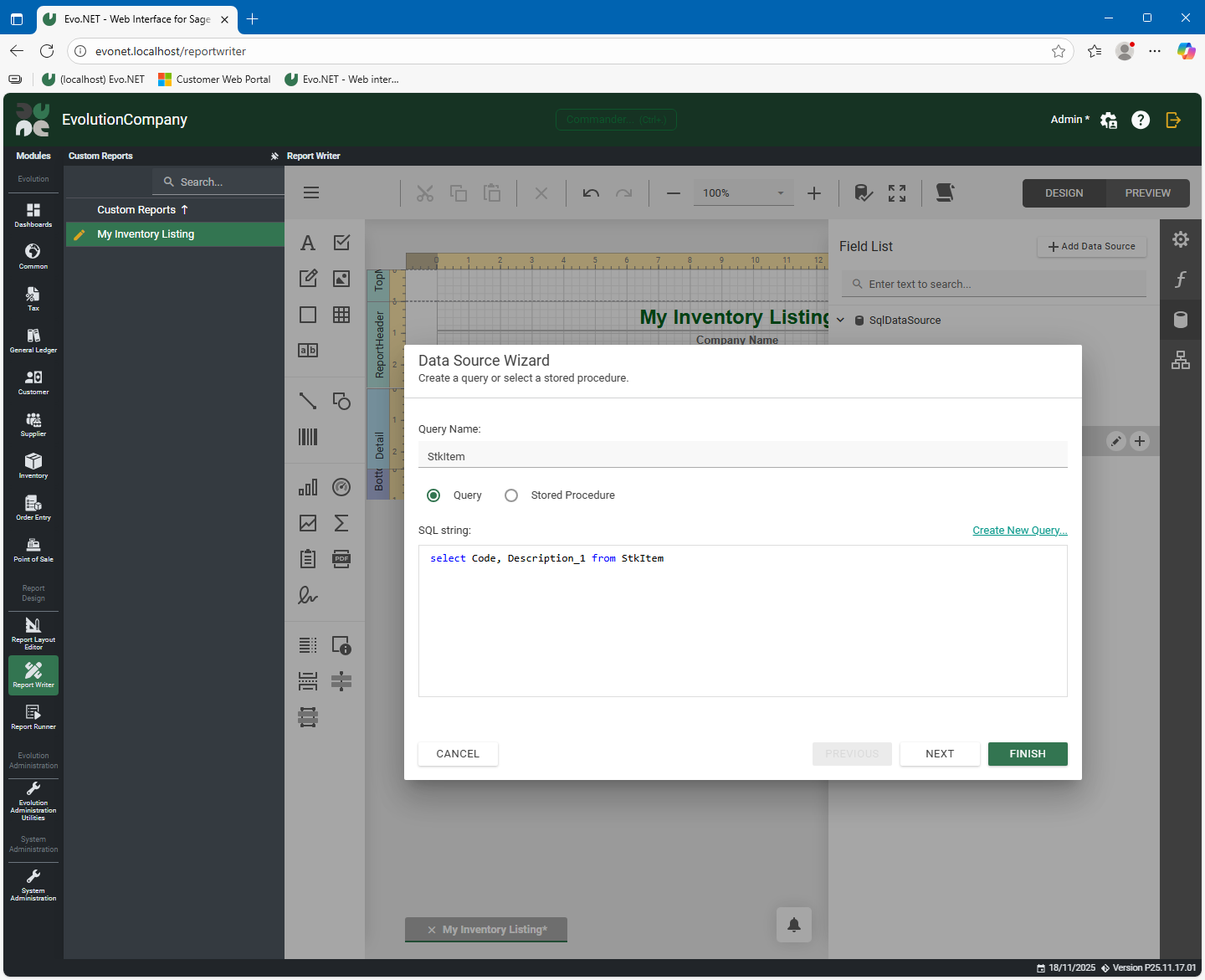
You can then modify the SQL directly, perhaps to optimise it, and the list of available fields will be adjusted accordingly.
SECURITY CONSIDERATIONS
By default, in order to protect the databases, certain SQL keywords are forbidden and an error will be returned if they are used. Examples are: GO, USE, DROP, ALTER, EXEC, RENAME, .... This protection can be disabled if you wish by setting a value for SqlAllowAllKeywords in the Server Settings.
Running the Report
After saving your report, navigate to the Report Runner where your report can easily be run in future.